How to copy iPhone photos to a Windows PC
Over the cable, with dates kept and nothing uploaded. Five steps, about ten minutes for the first copy, less after.
Last updated 25 October 2026. Written by BlackBox Tools, the maker of PhoneFerry.
The short answer
Plug the iPhone into the PC, tap Trust on the phone, open PhoneFerry, click a month in the camera roll, press Copy to PC and choose a folder. Every photo and video lands with its original date, HEIC becomes JPG if you want it to, and a Live Photo arrives as its still plus its short video. The first 100 items are free.
Step by step
- Install PhoneFerry. Download PhoneFerry from blackboxtools.com and run the installer. It installs in your own user folder and needs no administrator password. An iPhone also needs Apple's USB driver, which comes with the free Apple Devices app from the Microsoft Store or with iTunes.
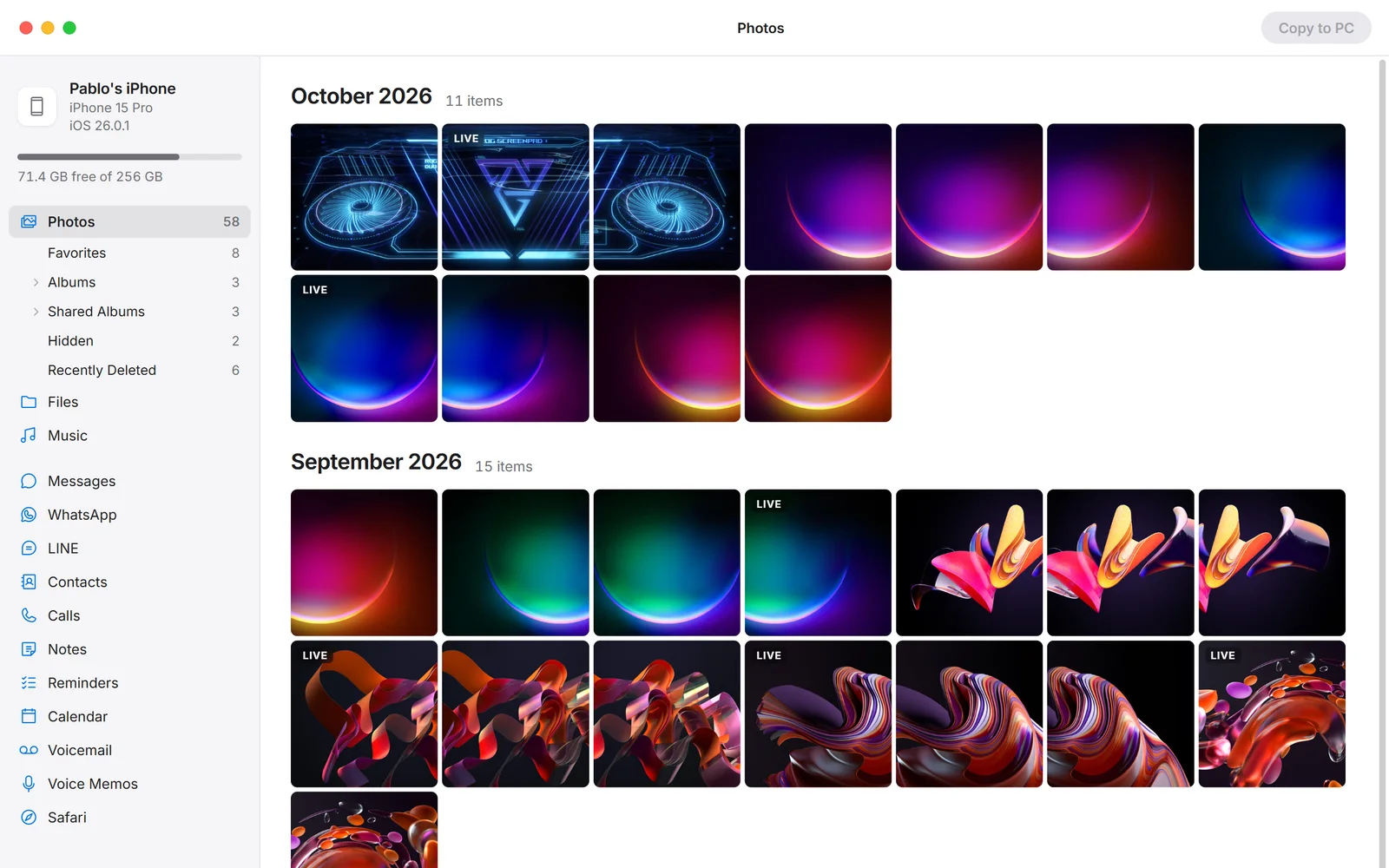
- Plug the iPhone in and tap Trust. Connect the cable. The phone asks Trust This Computer; tap Trust and enter its passcode. PhoneFerry opens by itself and shows the camera roll by month, with albums, Shared Albums, favorites and Live Photos in the sidebar.
- Pick the photos. Click single photos, drag across a range, or click a month header to take the whole month. The size of the selection shows next to the Copy button.
- Copy to PC. Press Copy to PC and choose a folder once. Each photo lands with its original date. HEIC photos become JPG if you leave that box ticked; Live Photos arrive as the still plus the short video. Nothing is ever overwritten.
- Optional: delete from the iPhone. Tick Delete from phone after copying on the copy sheet. PhoneFerry removes each photo only after it has read the copy back and compared it byte for byte.
Why not the Windows Photos app or iCloud?
The Photos app that comes with Windows imports the camera roll but drops Shared Albums, favorites and album names, and it stalls on large libraries. iCloud for Windows needs an Apple account, internet and iCloud storage, and downloads what Apple keeps rather than what is on the phone. PhoneFerry reads the phone itself over the cable, shows it as the Photos app on the phone does, and copies exactly what you pick.
Questions
How fast is it?
Over the cable that came with the phone, about 40 MB/s, which is USB 2: a full 256 GB library takes under two hours. A cable rated 10 Gbps on a USB 3 port is several times faster on an iPhone with a USB-C port. An iPhone with a Lightning port is USB 2 whatever the cable.
Do HEIC photos open on Windows?
PhoneFerry converts HEIC to JPG as it copies, with the EXIF date and GPS kept, when the HEVC Video Extensions from the Microsoft Store are installed. Without them it keeps the original HEIC so nothing is lost.
Does it need iCloud or the internet?
No. The photos travel over the cable and nothing is uploaded. The only connections PhoneFerry makes are a licence check when you enter a key and an update check when it starts.
What does it cost?
The first 100 copied items are free with no time limit. After that a licence is $14.99 once, for two PCs, for life.