How to export iPhone contacts to a PC
Every contact as one vCard file, with phone numbers, emails, addresses, birthdays and notes. Outlook, Google Contacts and any phone import it. No iCloud.
Last updated 25 October 2026. Written by BlackBox Tools, the maker of PhoneFerry.
The short answer
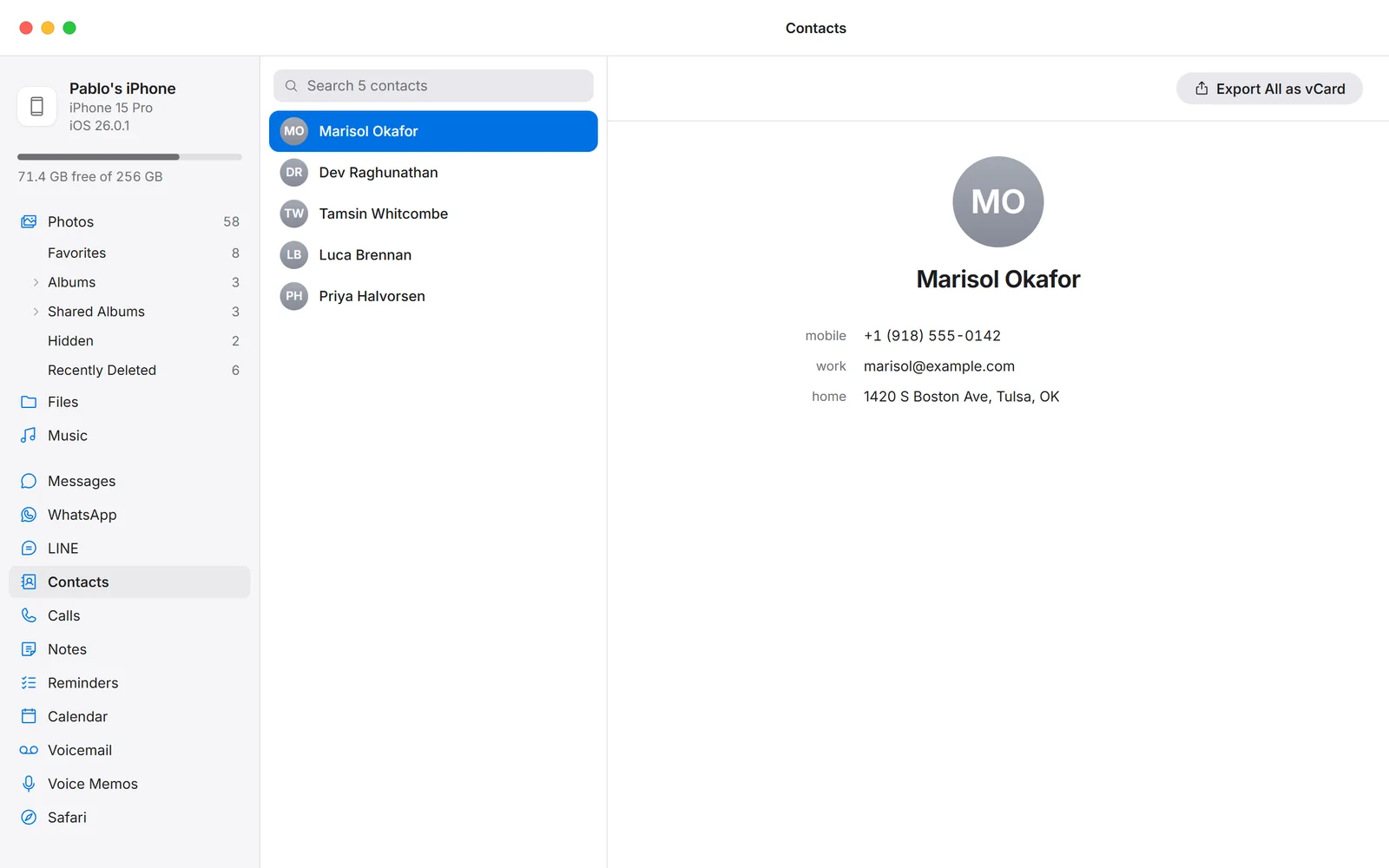
Plug the iPhone in, press Read from iPhone in PhoneFerry, open Contacts and press Export All as vCard. One Contacts.vcf file holds every person with every number, email and address. Import it into Outlook, Google Contacts, Thunderbird or another phone. An Android phone works the same way once USB debugging is on.
Step by step
- Install PhoneFerry and plug the phone in. Download PhoneFerry from blackboxtools.com, install it, connect the cable. On an iPhone tap Trust; on an Android phone choose File transfer and, for contacts, turn on USB debugging once under Developer options.
- Read the library once. Click Contacts and press Read. On an iPhone the phone freezes a snapshot and streams its data; contacts arrive after the photo library, so on a full phone this can take a while the first time. On Android the read takes a minute.
- Export. Press Export All as vCard and choose where to save Contacts.vcf. Every contact is in that one file, with labels kept (home, work, mobile).
Questions
How do I get the vCard into Outlook or Gmail?
Outlook: File, Open and Export, Import/Export, choose vCard. Google Contacts: Import, pick the .vcf. Any iPhone or Android phone: open the file in Mail or Files and tap Add All Contacts.
Are photos and notes on contacts included?
Names, organisations, every phone, email and address with its label, birthdays and notes are included. Contact photos are not in this release.
Does it need iCloud?
No. Contacts are read from the phone over the cable on your own PC.
What does it cost?
Each exported contact is one trial item; the first 100 are free with no time limit. Then $14.99 once, for two PCs, for life.