How to export iPhone text messages to a PC
iMessage, SMS and WhatsApp, with every photo and voice note, saved as a PDF, a web page and plain text. Four steps over the cable.
Last updated 25 October 2026. Written by BlackBox Tools, the maker of PhoneFerry.
The short answer
Plug the iPhone in, press Read from iPhone in PhoneFerry's Messages view, wait for the phone to send its data over the cable, then open any conversation and press Export. Each conversation becomes a folder with conversation.html, conversation.pdf, conversation.txt and an attachments folder. Nothing is uploaded, and the first 100 exports are free.
Step by step
- Install PhoneFerry and plug the iPhone in. Download PhoneFerry from blackboxtools.com, install it, connect the cable and tap Trust on the phone. An iPhone needs Apple's USB driver, which comes with the free Apple Devices app or iTunes.
- Read the library once. Click Messages in the sidebar and press Read from iPhone. The phone freezes a snapshot (about three minutes), then streams its data over the cable; PhoneFerry keeps only the megabytes it needs. Messages and WhatsApp usually appear within the hour; a phone with hundreds of gigabytes of photos can take overnight the first time. Keep it unlocked and plugged in.
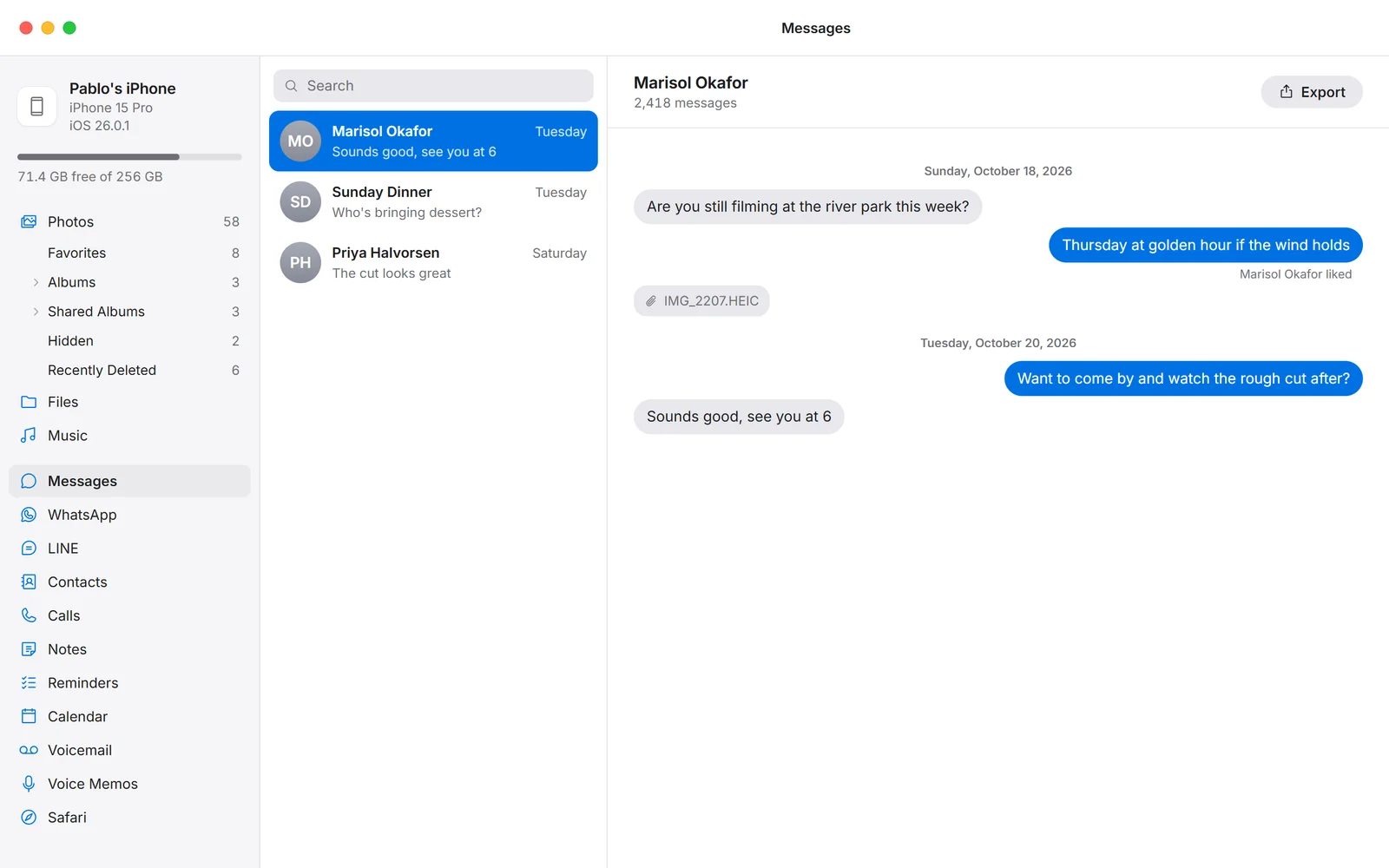
- Open the conversation. Conversations list with the newest first. Click one to read it, pictures and voice notes in place. Use Select to tick several at once.
- Export. Press Export and choose a folder. Each conversation becomes its own folder holding a web page with the bubbles and pictures, a PDF printed from it, a plain text file, and an attachments folder with every photo, video and voice note.
What the export looks like
The web page shows the conversation as bubbles, yours on the right, with the photos in place and each file linked. The PDF is printed from that page, so it reads the same and holds up as a record. The text file has one line per message with the date, sender and text, and names each attachment. A conversation of 9,750 messages exports in under a minute on a current PC.
Questions
Does it export iMessage as well as SMS?
Yes. iMessage, SMS and MMS are all in the same Messages database on the phone and come out together, with the pictures and voice notes.
Can I export WhatsApp from an iPhone?
Yes. WhatsApp chats on iPhone export the same way, with their media. On Android WhatsApp encrypts its database with a key only the app holds, so PhoneFerry saves the archive files for you instead.
Do I need a backup password?
Only if backup encryption is already on for your phone in iTunes or Finder. Then PhoneFerry asks for that password once per session. Call history and Safari history only travel encrypted, so reading those turns encryption on for one read and off again.
Is anything uploaded?
No. The messages are read from the phone on your own PC over the cable. PhoneFerry has no account and no server.
What does it cost?
Each exported conversation is one trial item; the first 100 are free with no time limit. Then $14.99 once, for two PCs, for life.